Item's detail view
Users can open the item detail view by clicking on the icon at the beginning of the item line. There all items fields (of current screen) and values are displayed, including specific fields.
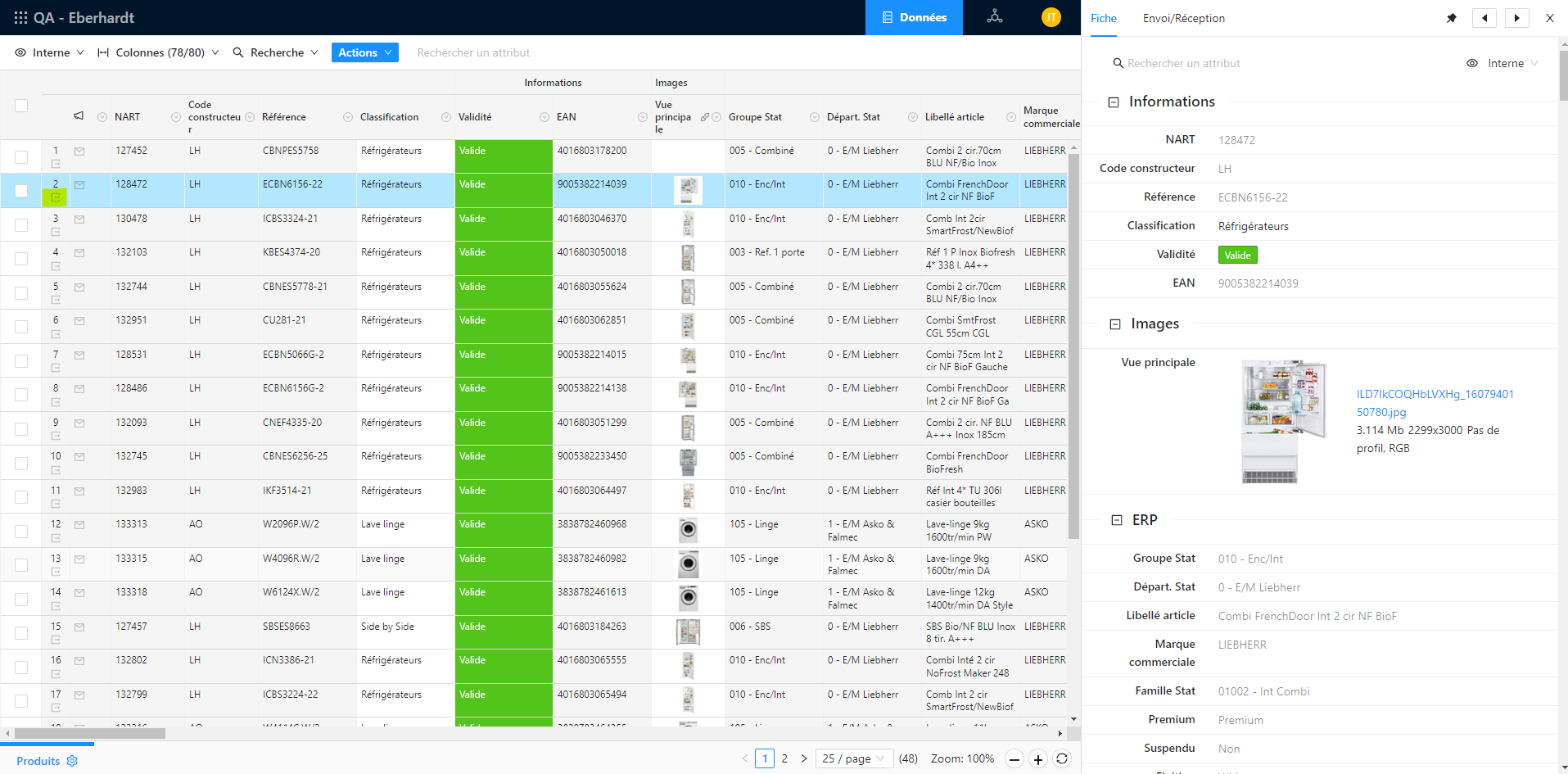
To see another item details, users can :
- Click on the icon at the beginning of the line of another item
- The line is then selected
- The detail view is then refreshed with the new selected item data
- Move the active cell to another line
- The line is then selected
- The detail view is then refreshed with the new selected item data
- To move the active cell, user must :
- Click on a cell of another line with the mouse
- Move the active cell with the keynoard arrows
From the detail view, users can select another screen of the current table to see other fields according to the one defined on that screen. If the current table is linked to another one, users can also select linked table' screens to see item data in the linked context. More details on table links here