Authentication > 2FA via email
Introduction
Since the deployment in production of our new autrntification brick - Keycloak, we are able to offer new functionalities around the authentication and security of the users' profiles.
It was possible to activate the 2FA via TOTP (Time-based One-Time Password) for any product live user. It is now possible to activate the 2FA via email.
What is two-factor authentication (2FA)?
Two-factor authentication (2FA) is a method for confirming a user's claimed identity by using a combination of two different components. These components may be something you know (e.g., a password or PIN), something you have (e.g., a mobile phone), or something you are (e.g., a fingerprint or retina scan).
What is a One-Time Passcode (OTP)?
OTP, or One-Time Passcode, is a single-use numerical passcode. An OTP code is generated by an algorithm and is valid for a short period of time. The code is usually generated by a mobile application that support TOTP (such as Google Authenticator or Microsoft Authenticator) or sent by email.
What's does it look like?
When the 2FA via email is enabled for a given user, the user will receive an email with an OTP code each time he will try to log in.
the mail received by the user
French version
Object: Votre code de connexion
Bonjour,
Vous pouvez entrer ce code pour vous connecter à Product-Live:
[Code en question]
Si vous n'avez pas tenté de vous connecter, veuillez ignorer ce message.
-- L'équipe Product-Live
English version
Object: Your login code
Hello,
You can enter this code to login to Product-Live:
[Code in question]
If you have not attempted to log in, please ignore this message.
-- The Product-Live Team
Deutsch version
Object: Ihr Anmeldecode
Guten Tag,
Sie können diesen Code eingeben, um sich bei Product-Live anzumelden:
[Code in Frage].
Wenn Sie nicht versucht haben, sich einzuloggen, ignorieren Sie bitte diese Nachricht.
-- Das Product-Live-Team
The form to enter the OTP code
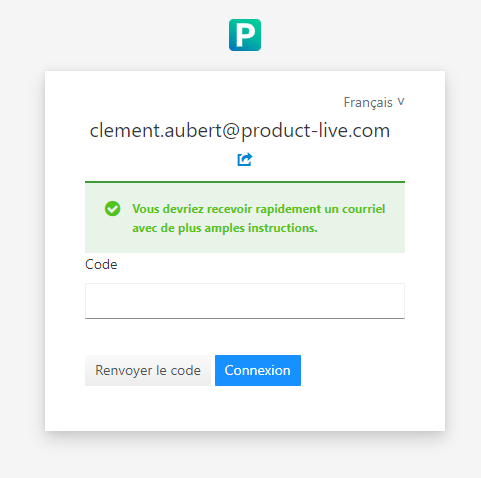
It is possible for the user to receive a new OTP code by clicking on the Resend code button.
How to enable the 2FA via email?
Process
- A Product-Live user is not able to enable or disable the 2FA via email himself
- A demand to enable the 2FA via email for a given user must be sent to the Product team
- A standard issue has been created to track the demand: link
Technical details
The 2FA via email may be enabled directly from the Keycloak interface. Once activated for a given user, the user will receive an email with an OTP code each time he will try to log in.
Set UP
To add 2FA on authentication flow, you need to update the browser flow. Access to keycloak, menu Authentication select the flow bound to browser flow.
 Click on the
 + and select Add sub-flow
 Input
Input Conditional Email Code as Name and Description, Flow type is Generic
 Change trigger from
 Disabled to Conditional, and click + to add a Condition
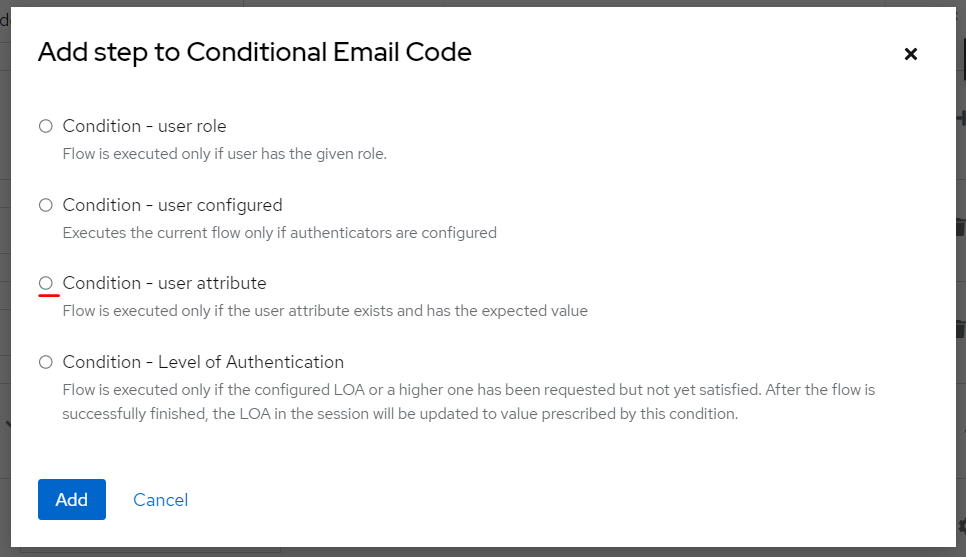 Select
 Conditional - user attribute, click Add
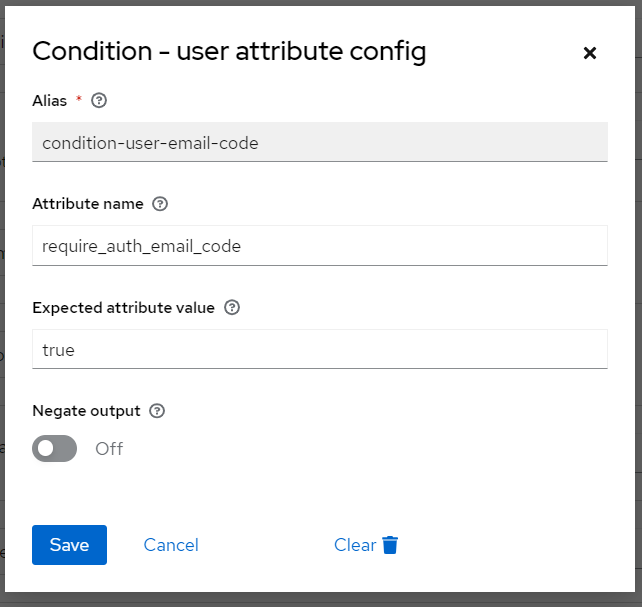 Input
Input conditional-email-code as alias, require_auth_email_code as Attribute name, true as Expected Attribute value, and Save
 Change trigger from
 Disabled to Required, and click + to add a Step
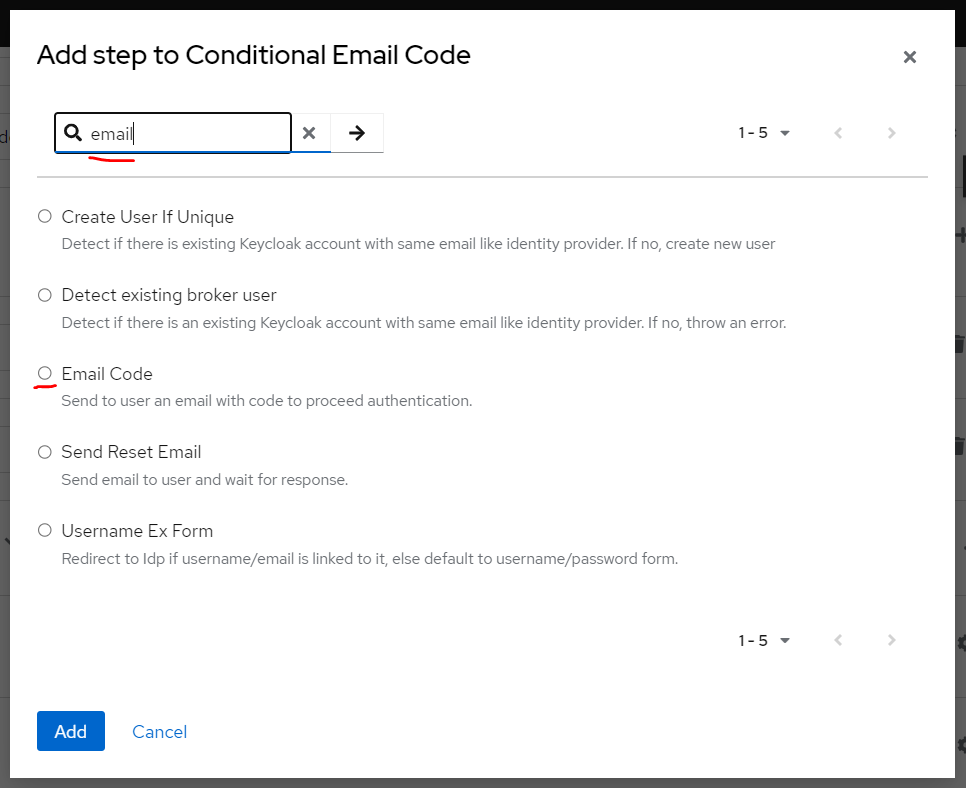 Search and Select
 Email code step
 Change trigger from
 Disabled to Required, it's Done
Basically, we just added a conditional step on the browser flow that will trigger the Email code step, after successfully password check for all user that have the attribute require_auth_email_code with the value true.
Step 1: Select the targeted user on a given realm
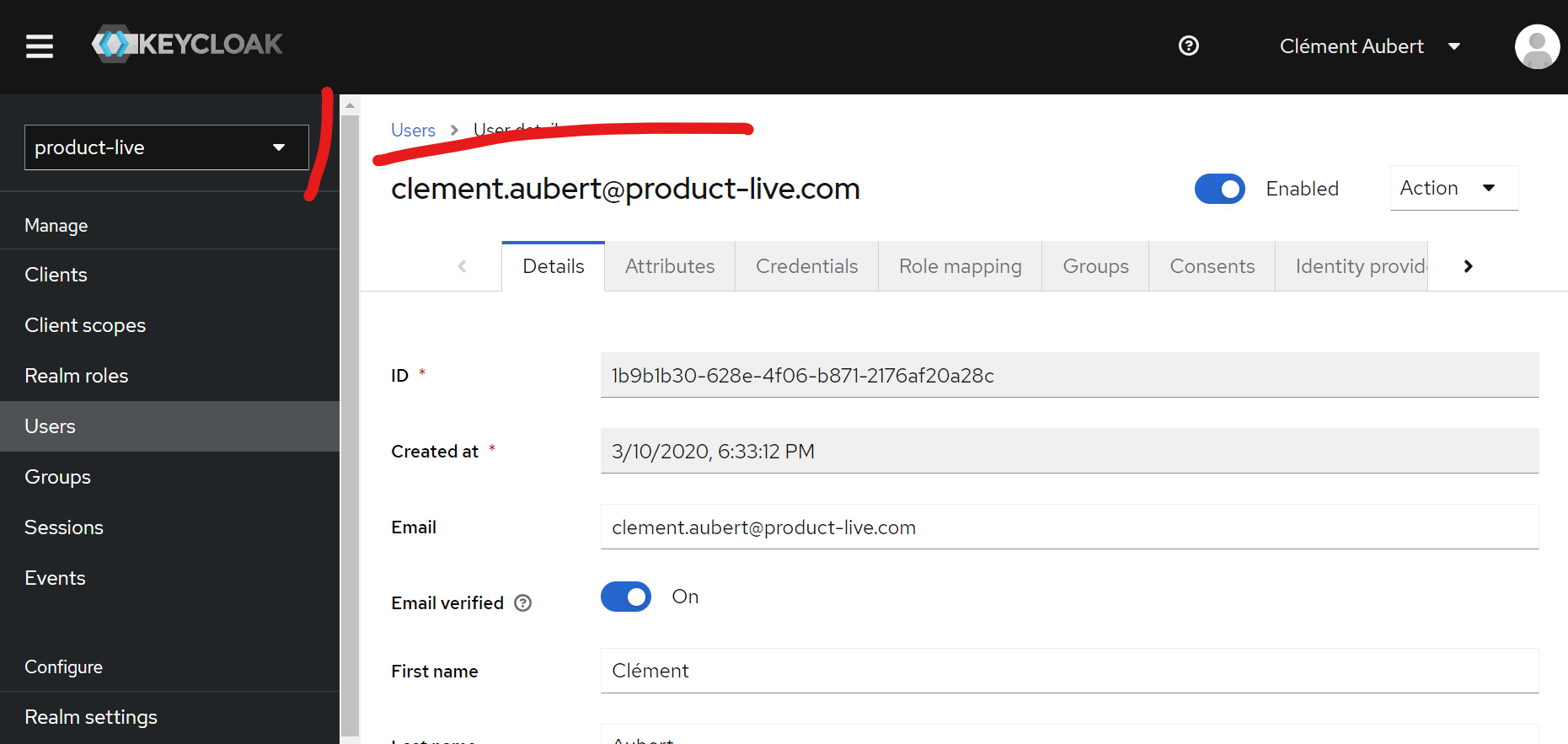
Step 2: Enable the 2FA via email
Add the require_auth_email_code attribute with the value true to the user.
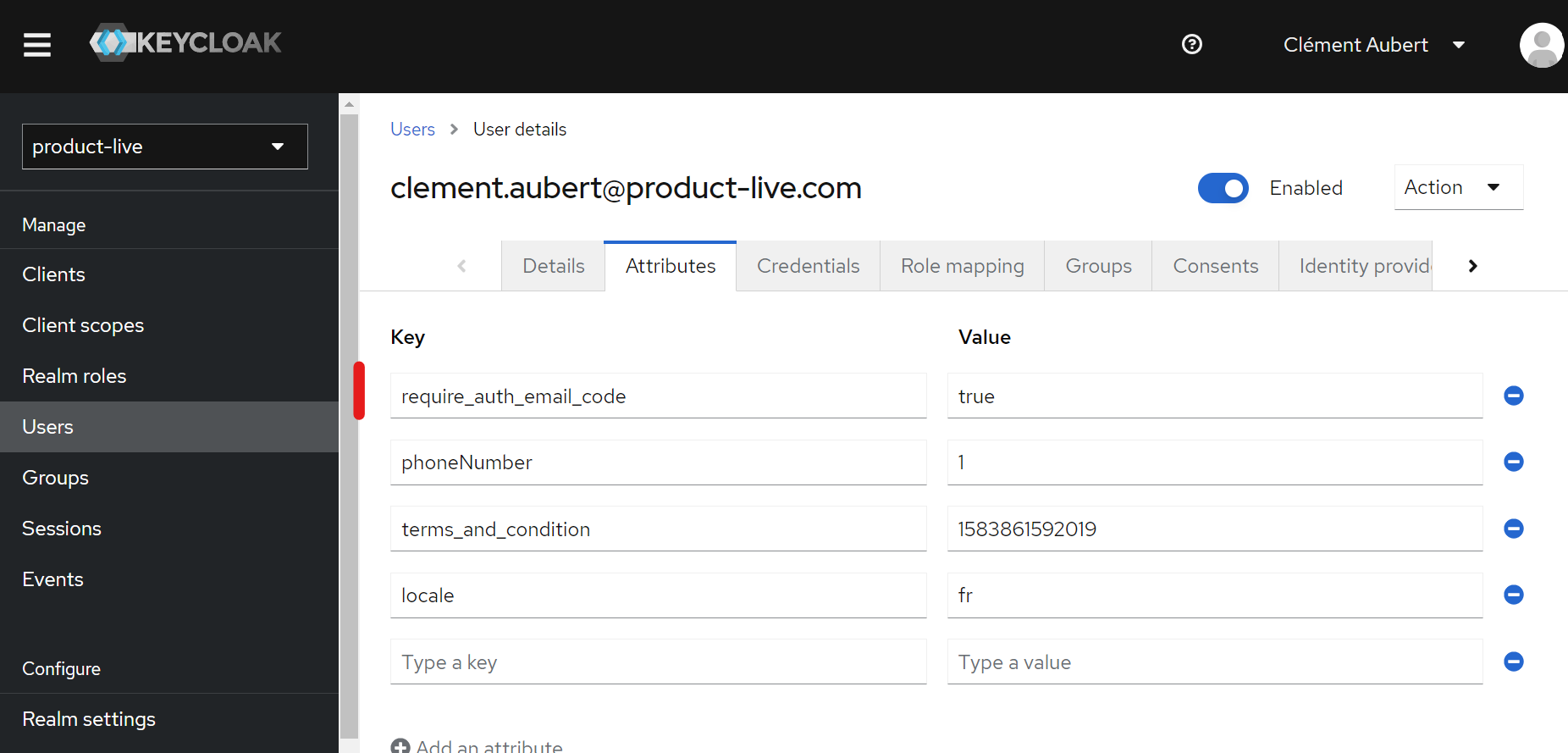
Key elements
- The 2FA via email may be enabled directly from the Keycloak interface
- Once activiated for a given user, the user will receive an email with an OTP code each time he will try to log in
- The user will not be able to enable or disable the 2FA via email himself
Technical details
On the Keycloak side
Note
Keycloak is an open source identity and access management solution. It manages the authentication of the users on the platform.
The OTP via email is disabled by default. It may be enabled by setting the following attribute on a given user:
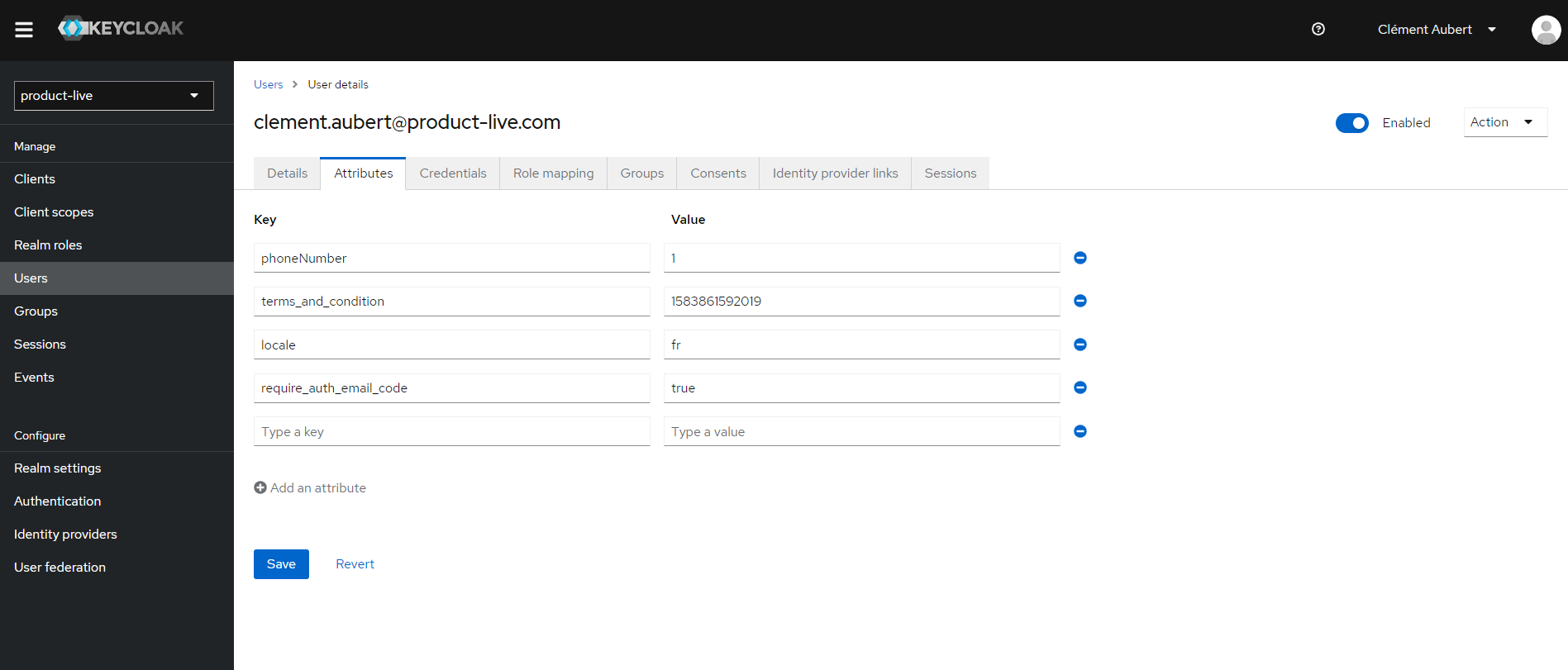
The key is require_auth_email_code nd the value may be true or false.