VSCode Extension - The Basics
The vscode Data Factory extension is an aid to creating Data Factory jobs, presented as an extension to the IDE vscode. The main features are:
- Create the recommended file structure for a job (in particular: a
job.jsonfile at the root and anassetsdirectory) - Validate the structure of the job.json file, which describes the sequence of steps within a job
- Assist the user in job design (autocompletion within the
job.jsondocument and explicit error reporting) - Help in the design and execution of the
xslttransformation sheet - Validation of XML files and error reporting (example: validation of a table import file)
- Save and run directly from the IDE on a specific account
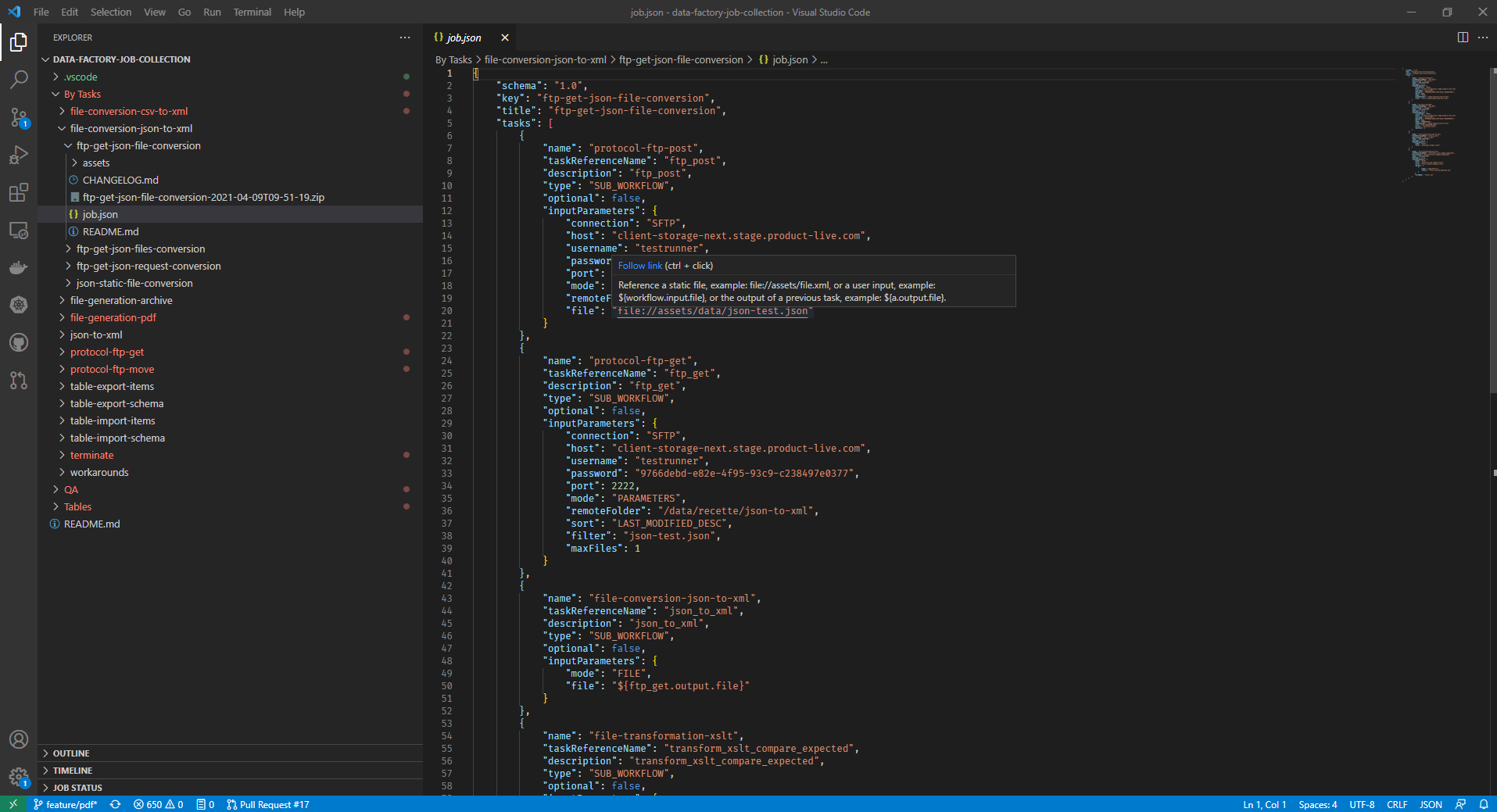
Installing the extension
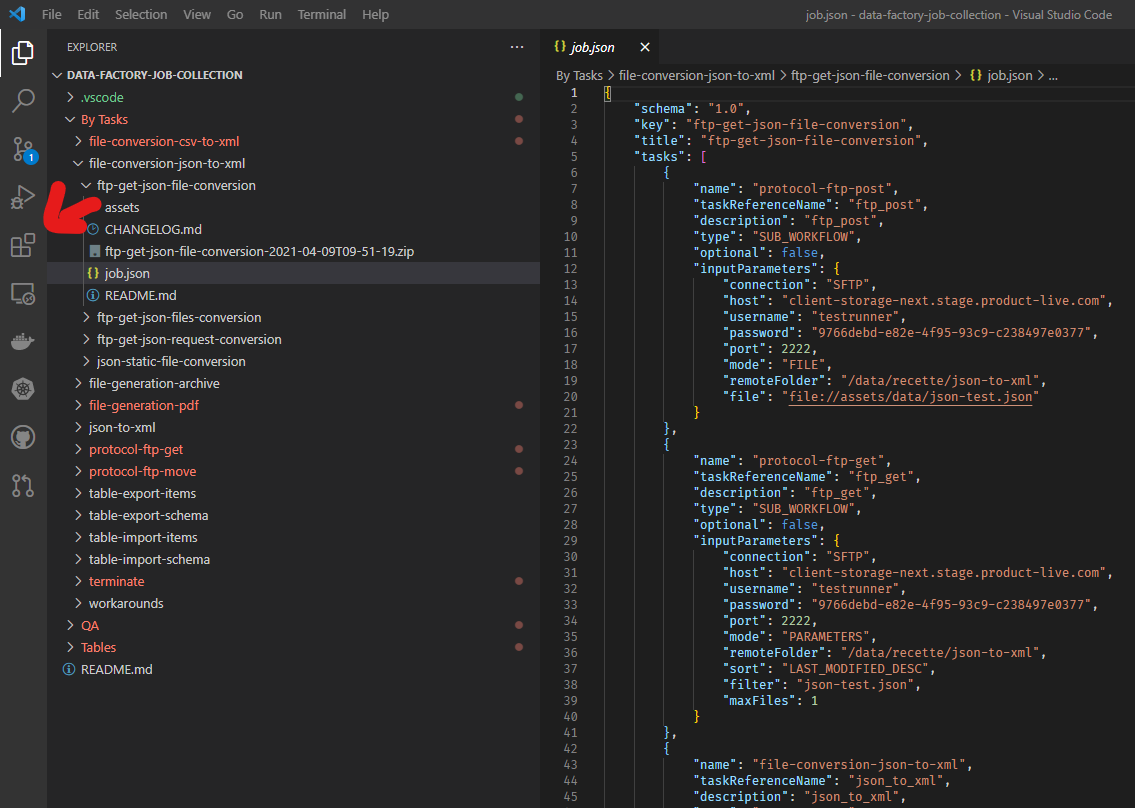
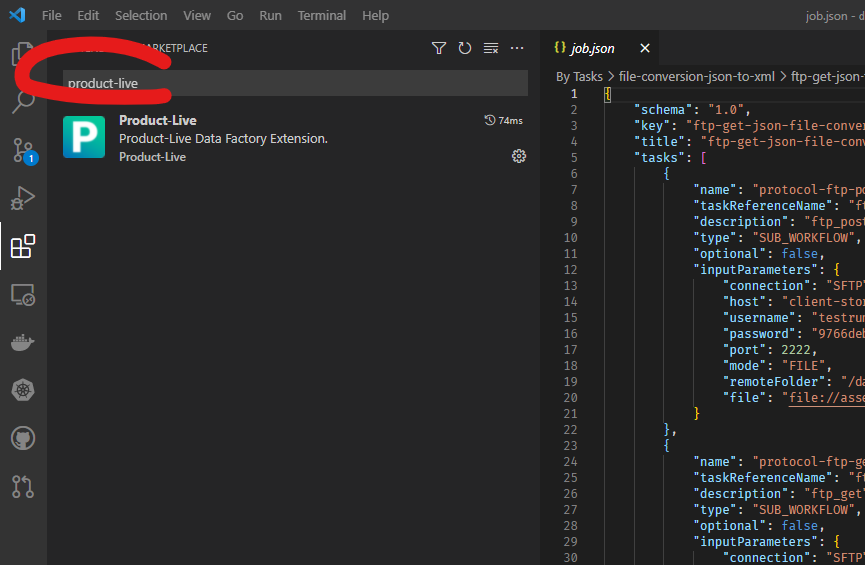
Classic install
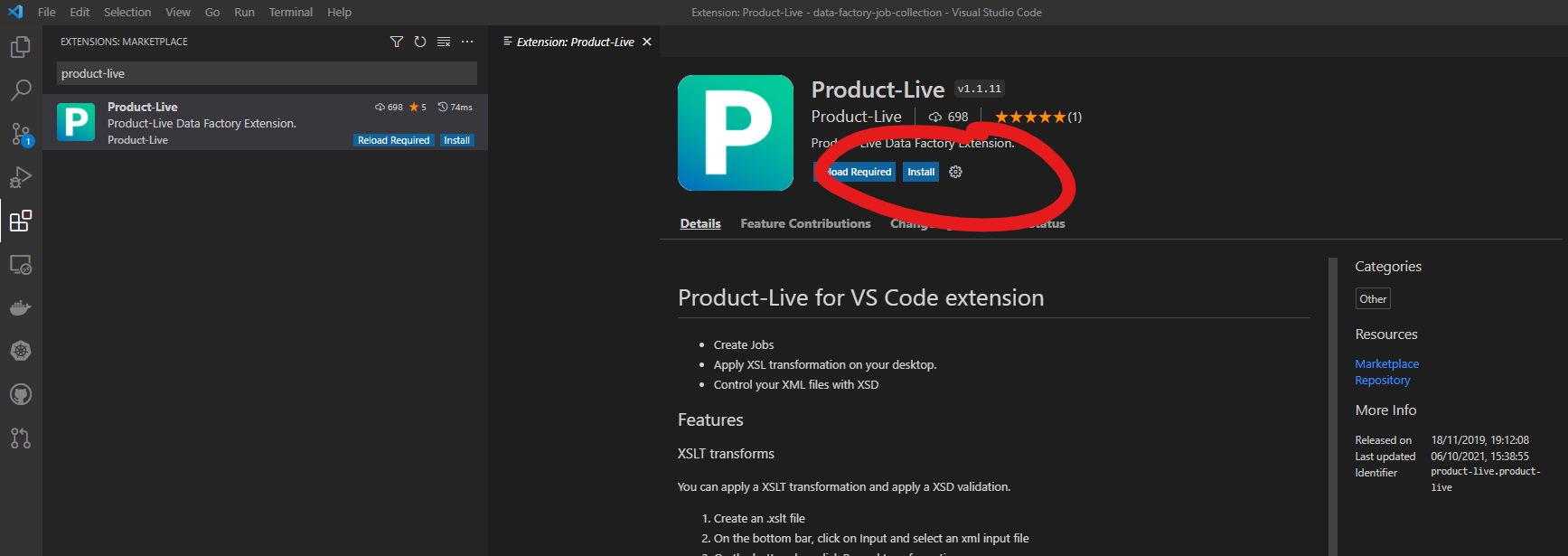
Installation is done from the store of the VSCode IDE
Remarks
Updates are done automatically by the IDE when a new version is available.
Install the extension via a vsx file
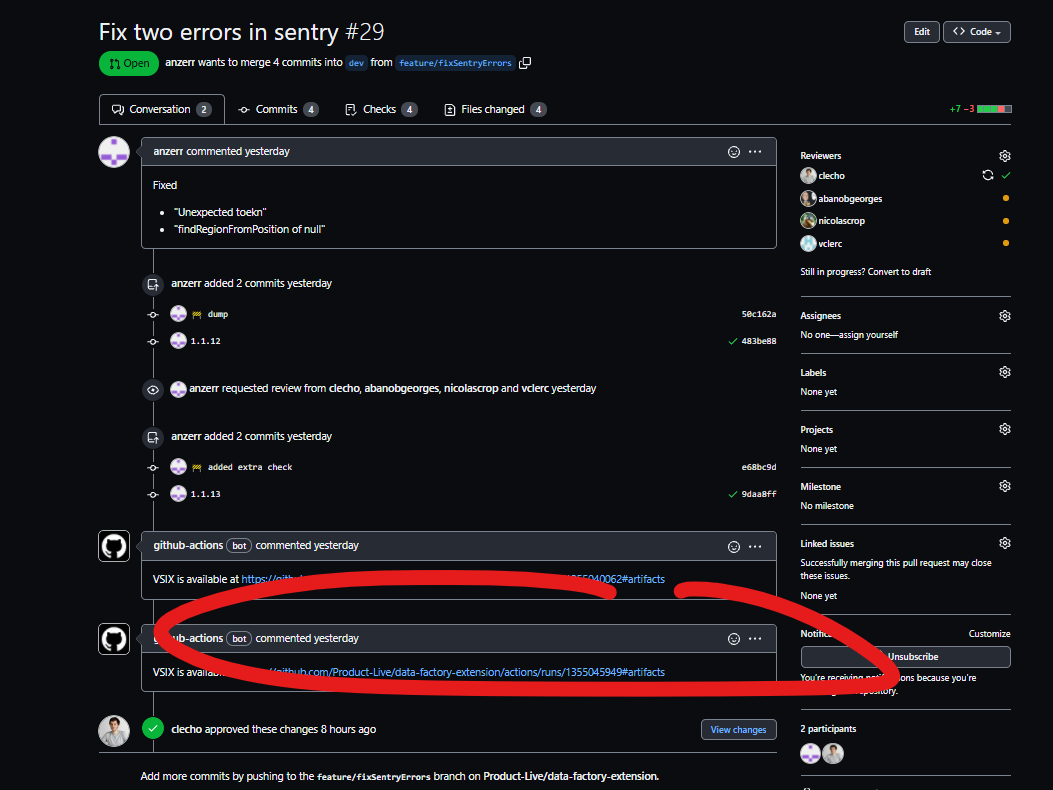
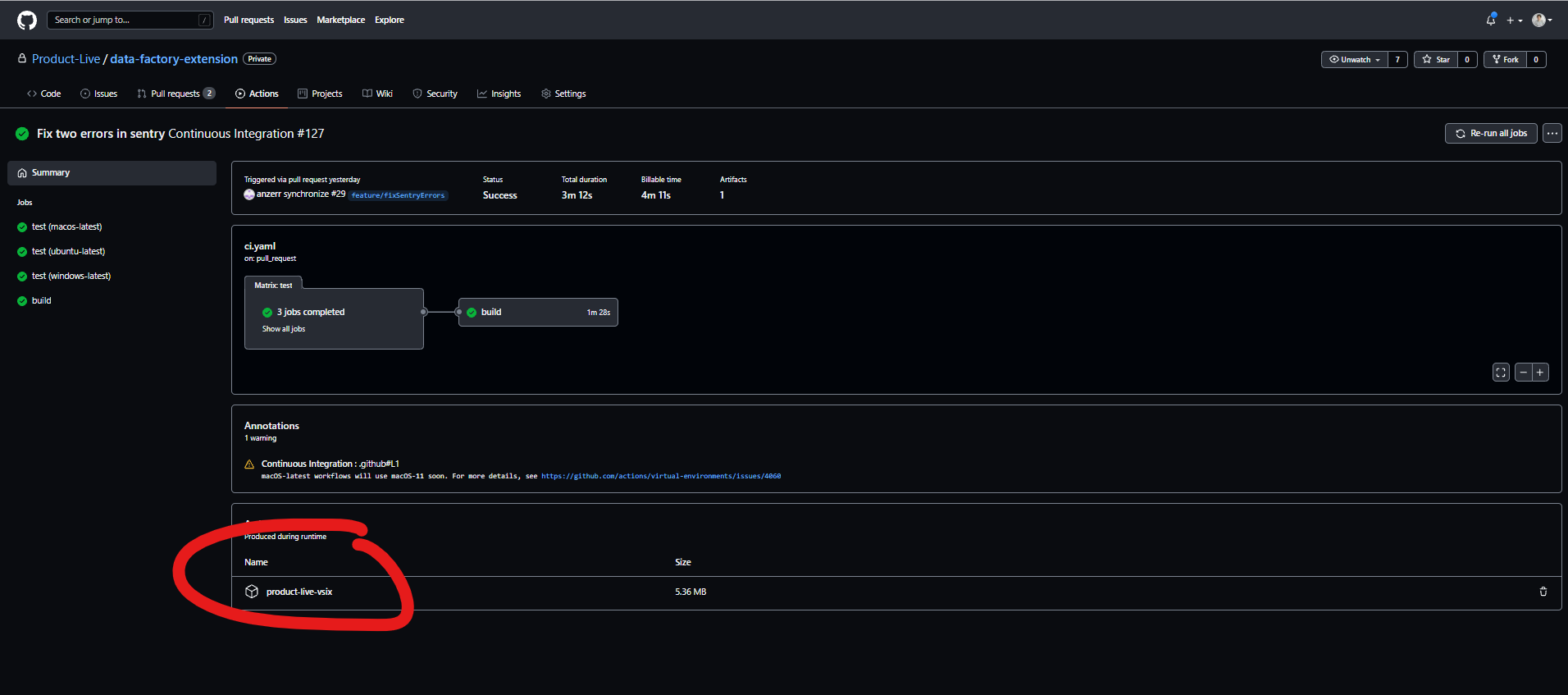
This case arises in particular in the case where you want to test a version of the extension that has not yet been published on the store.
When creating a pull request on the Product-Live/data-factory-extension project, a preview of the extension is automatically built, and made available directly from the PR (see below)
Enable preview features
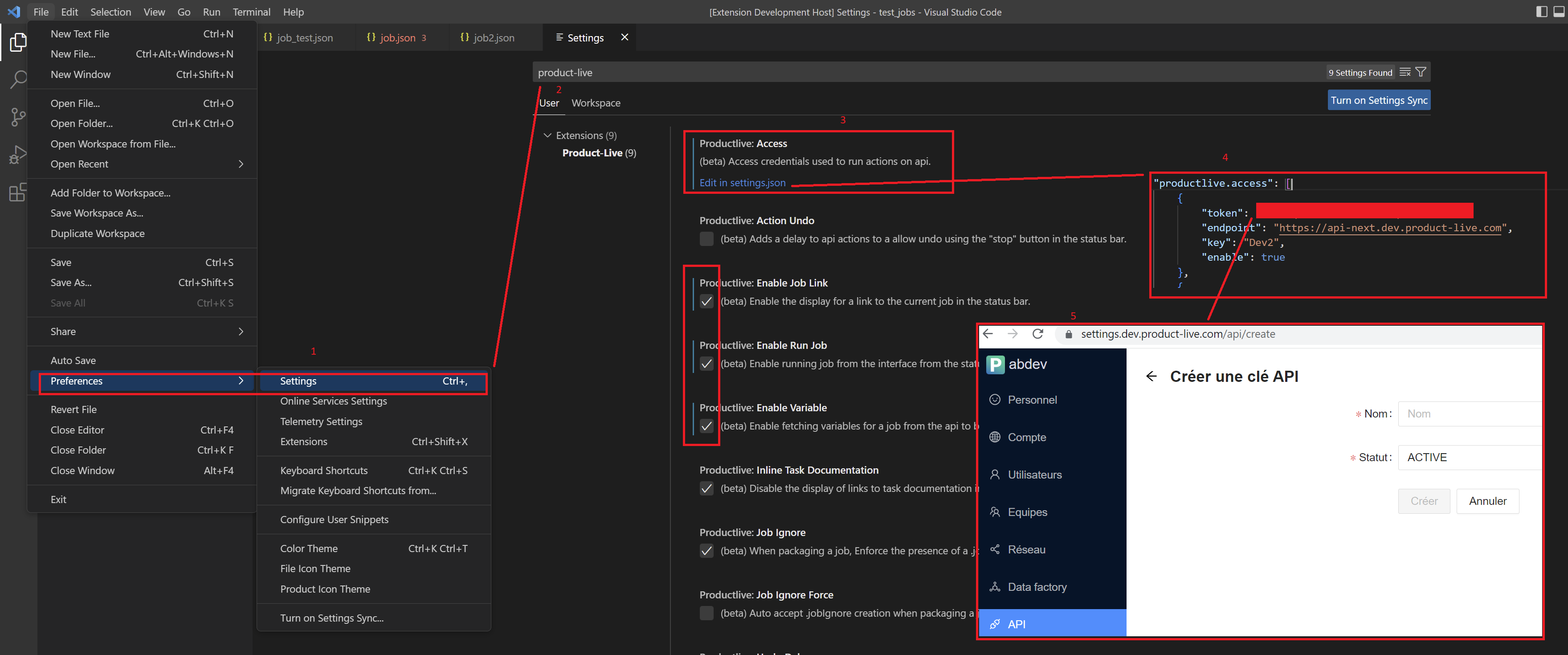
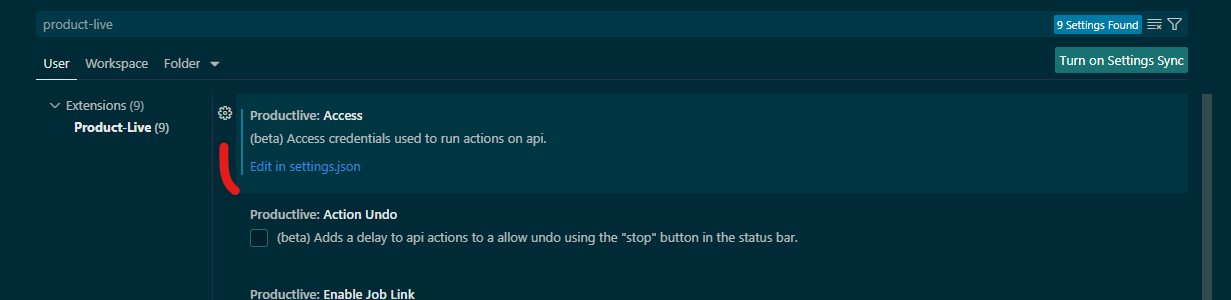
Certain features of the extension are still in preview and are not enabled by default. To enable them, you must access the settings of the extension and activate the necessary options.
To do so, go to the settings of the IDE (shortcut: Ctrl + ,), then search for the Product-Live extension and activate the options you want. Some features need at least one environment to be configured. An environment is a set of credentials to access a specific account, an API key needs to be provided.
Product-Live access
Some features of the extension require access to the Product-Live API. To be able to use them, the user must have an account on the Product-Live platform and have access to the public API feature.
Create an access
To create an access, go to the settings page and under the Product-Live: Access section, click on the edit in settings.json button.
An access is defined as below:
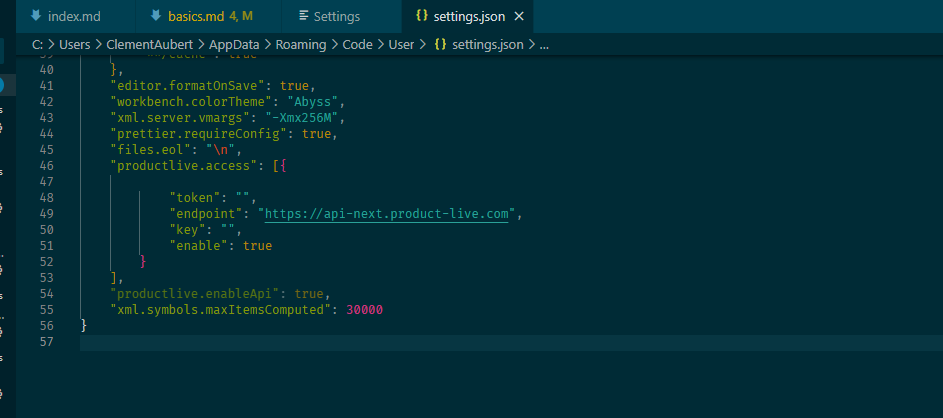
The following fields are required:
token: the token to access the API, it can be created from thesettings.product-live.comapplication (see)endpoint: The default endpoint is the production API endpoint (api.product-live.com), but it is possible to use the staging API endpoint (api.stage.product-live.com), or the development API endpoint (api.dev.product-live.com)key: The unique key of the credential set (and also the name that will be displayed in the extension)enable: describe whether the credential set is enabled or not
Features
Variables autocompletion
In preview
This feature is in beta and disabled by default. To enable it, go to the extension settings and activate the dedicated option. Available from version 1.5.0.
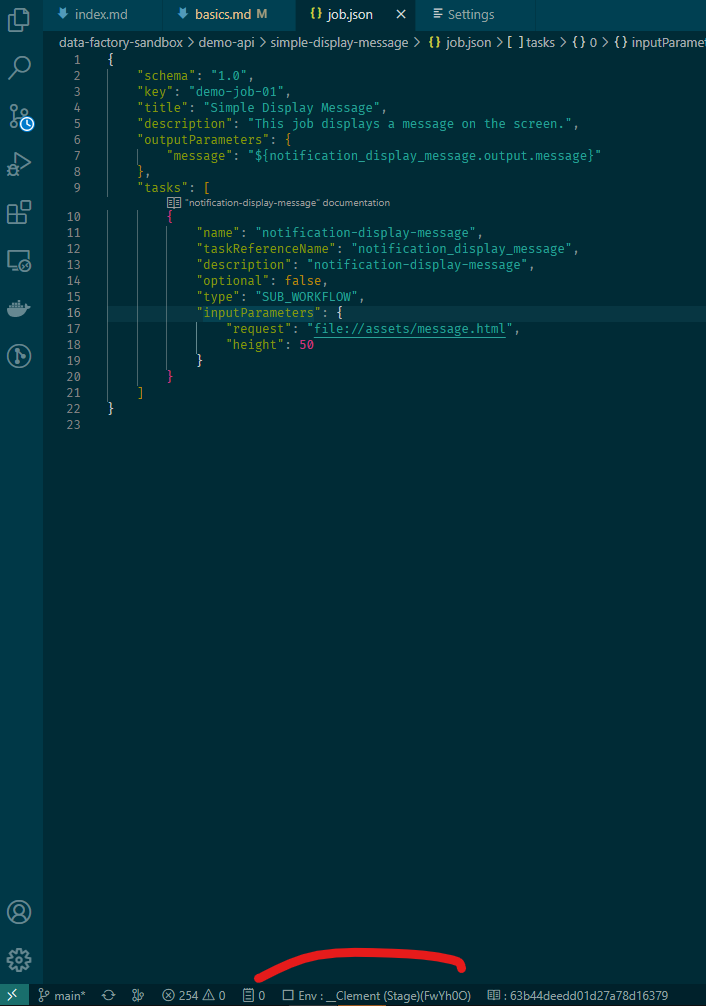
The extension provides autocompletion for the variables defined in the job.json file. Those variables belong to the environment selected (see below).
Display current job inside the settings.product-live.com application
In preview
This feature is in beta and disabled by default. To enable it, go to the extension settings and activate the dedicated option. Available from version 1.5.0.
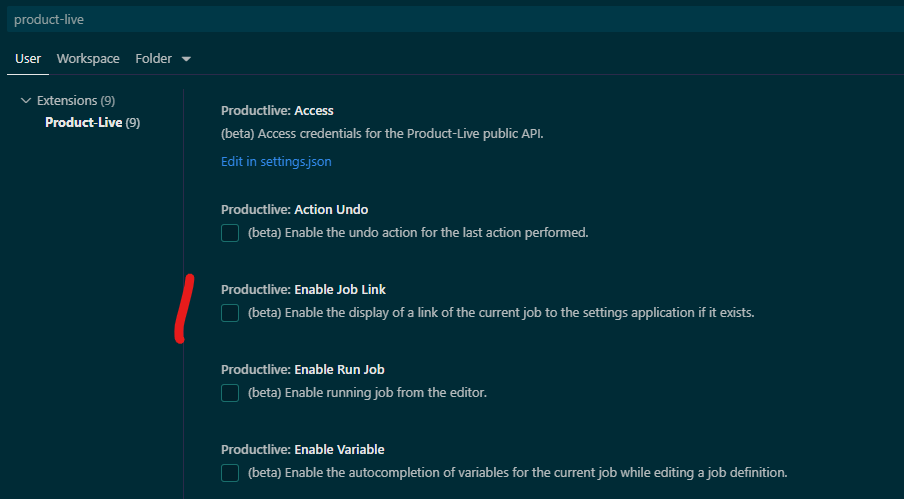
If the current job exists on the Product-Live platform (in the current selected environment), the extension will display a link to the job inside the settings.product-live.com application.
Run a job
In preview
This feature is in beta and disabled by default. To enable it, go to the extension settings and activate the dedicated option. Available from version 1.5.0.
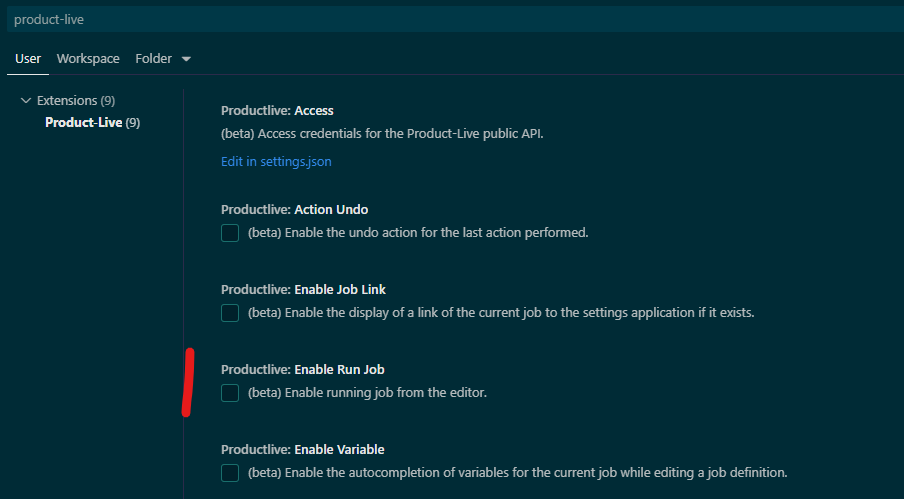
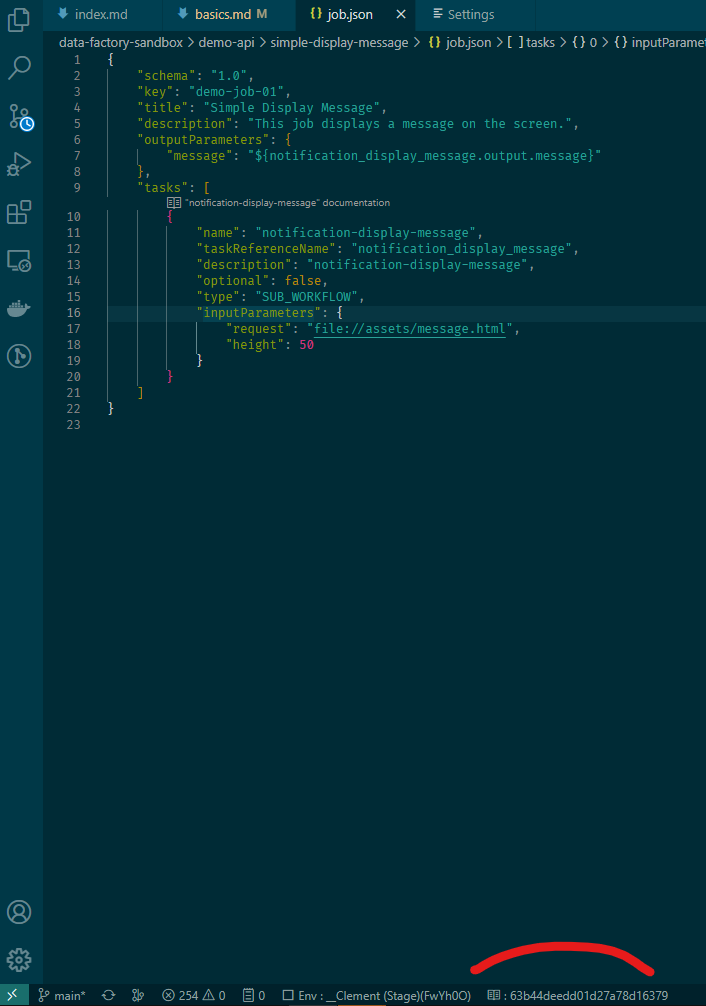
The extension allows you to run a job directly from the IDE. To do so, you must have an environment configured (see above) and the job must exist on the Product-Live platform.
Cancel the run of a job
In preview
This feature is in beta and disabled by default. To enable it, go to the extension settings and activate the dedicated option. Available from version 1.5.0.
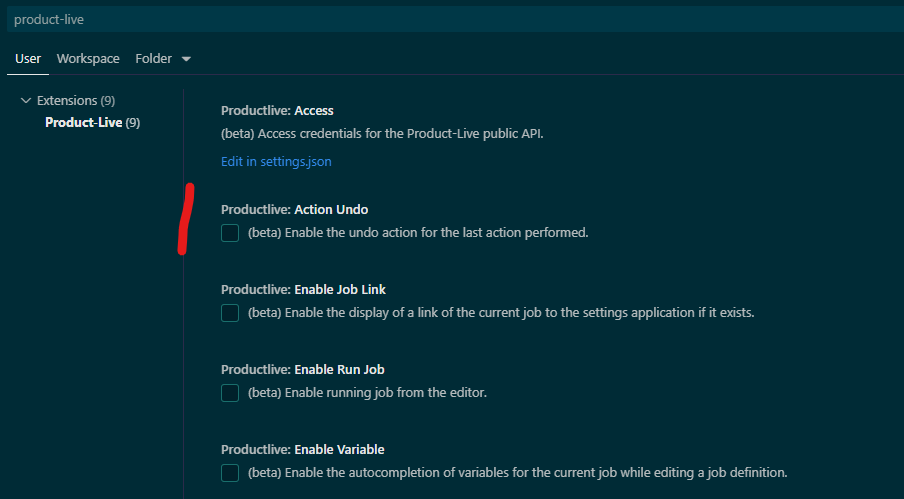
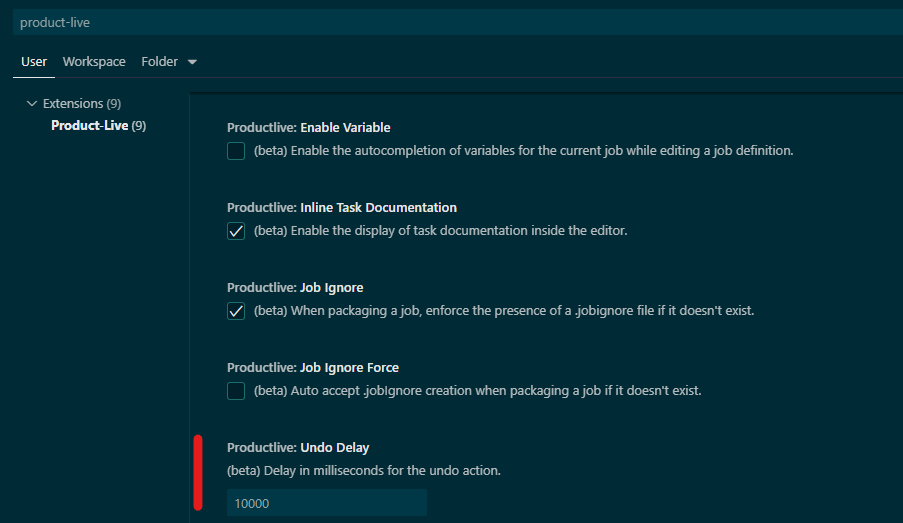
The extension allows you to cancel the run of a job immediately after it has been launched. The delay is set by default to 10 seconds, but can be changed in the extension settings.
Enforce the presence of a .jobignore file
In preview
This feature is in beta and enabled by default. To disable it, go to the extension settings and deactivate the dedicated option. Available from version 1.5.0.
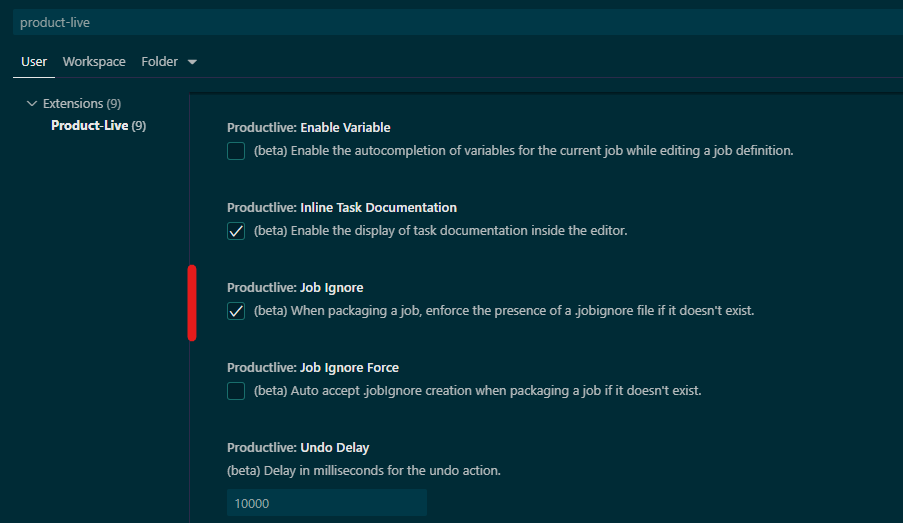
The extension allows you to enforce the presence of a .jobignore file at the root of the job. Meaning that if the file is not present, the extension will automatically create it. This file is used to ignore files that should not be uploaded to the Product-Live platform.