Conditional Formatting > UI
Introduction
This document describes the UI related to the Conditional Formatting feature. To date, the only way to visualize the conditional formatting fields and caracteristics of a table is through the grid view of the app.product-live.com application.
Conditional Formatting fields in the grid view
Conditional Formatting fields
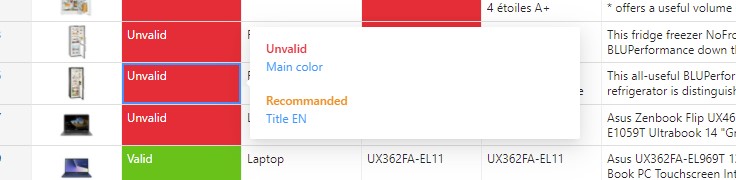
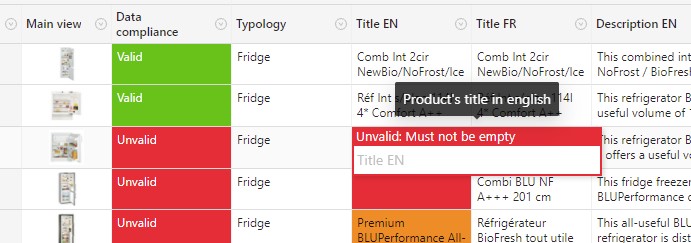
Note in the example above from the application app.product-live.com, that for the item found on line 3, the title field is empty. This field therefore triggers the Unvalid status, and is colored in red since it is the color associated with the "Unvalid" status when it is created.

In case of a field does not match multiple rules on one or many conditional formatting fields, a single message is displayed. The message is displayed according to the conditional formatting field order in the screen and then the order of the rule as defined in the table.
Cell edition
Conditional Formatting summary